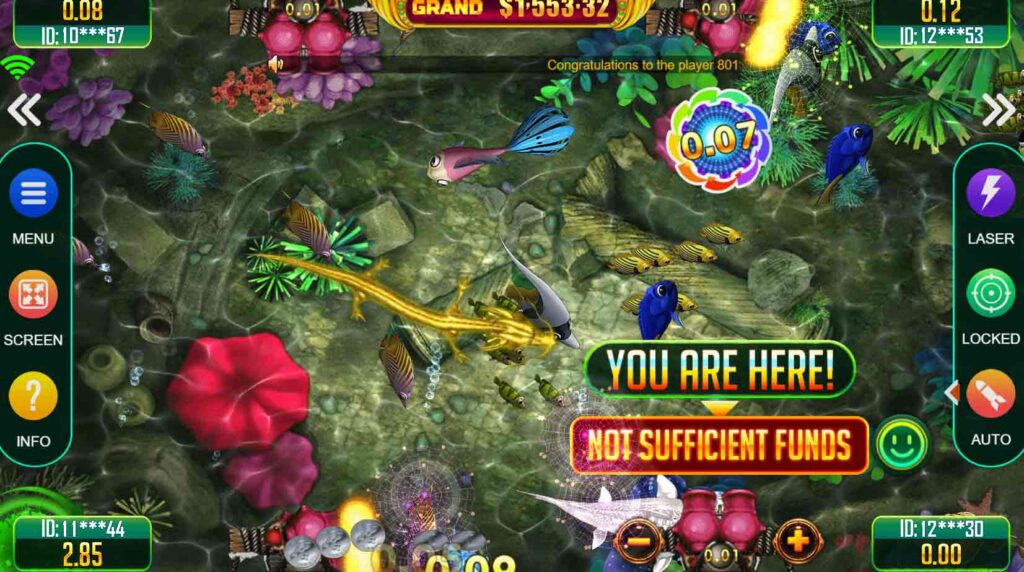
Fire Kirin APK Download for Android — Complete Step-by-Step Guide [2026]
Fire Kirin 777 is not available on the Google Play Store, so downloading it requires a few extra steps compared to a typical app. This guide walks you through the entire process safely — from downloading the APK file to fixing common installation issues — so you can start playing within minutes on any Android device.
Android System Requirements
Before downloading, make sure your Android device meets these minimum requirements:
- Android Version: 5.0 (Lollipop) or higher. Android 8.0+ recommended for best performance.
- Storage: At least 100 MB of free storage space.
- RAM: 2 GB minimum, 3 GB or more recommended for smooth fish game graphics.
- Internet: A stable Wi-Fi or 4G/5G connection is required to play.
Nearly all Android smartphones and tablets released after 2016 meet these requirements. If you're on an older device and experience performance issues, the browser version may run better.
Step 1: Create Your Free Account First
Before downloading the app, you'll need a Fire Kirin 777 account to log in. Account creation is free and takes under two minutes. Visit our free account sign-up page, fill in your name, email, phone number, and state, then submit the form. You'll receive your login credentials within a few hours.
Creating your account first means you can log in immediately once the app is installed — no waiting around after installation.
Step 2: Enable "Install Unknown Apps" on Your Android Device
Because the Fire Kirin APK is installed outside the Google Play Store, you need to give your browser or file manager permission to install apps from unknown sources. The exact steps vary slightly by Android version and device manufacturer:
Go to Settings → Apps → Special App Access → Install Unknown Apps. Find your browser (Chrome, Firefox, etc.) or File Manager and toggle "Allow from this source" to ON.
Go to Settings → Security → scroll down to "Unknown Sources" and toggle it ON. You may see a warning — tap OK to confirm.
Go to Settings → Biometrics and Security → Install Unknown Apps. Select your browser and enable "Allow from this source."
Step 3: Download the Fire Kirin 777 APK
With unknown sources enabled, visit our Android download page on your Android device and tap the "Download Fire Kirin APK for Android" button. The APK file (approximately 45 MB) will begin downloading immediately.
You'll see a download progress notification in your notification bar. Wait for the download to complete fully before proceeding to installation — partial downloads cause install failures.

Step 4: Install the Fire Kirin APK
Once the download completes, open your notification shade and tap "Open" on the completed download notification. Alternatively, open your device's Files or Downloads app, navigate to your Downloads folder, and tap the Fire Kirin APK file.
A screen will appear asking you to confirm the installation. Review the permissions requested and tap "Install." The installation takes 15 to 30 seconds. When complete, you'll see an "App installed" confirmation.
Find it in your Downloads folder or tap the notification. Do not tap "Install Anyway" warnings without reading them first.
Fire Kirin requests storage and network permissions — these are standard for gaming apps. Tap Install to proceed.
The process takes 15–30 seconds. Do not tap the back button or lock your screen during installation.
Step 5: Open Fire Kirin 777 and Log In
Once installed, the Fire Kirin 777 icon will appear on your home screen or app drawer. Tap it to open the app. On the login screen, enter the email address and password from your account credentials. If you don't have an account yet, visit our sign-up page first.
After logging in, your welcome bonus credits will be available immediately. You can start playing any of the 50+ games in the library right away.
Fixing Common Fire Kirin APK Install Errors
"App Not Installed" Error
This error usually means your storage is full or the downloaded APK file is corrupt. Free up at least 200 MB of storage, delete the downloaded APK, and download it fresh from our download page.
"Parse Error" During Installation
A parse error typically means your Android version is too old (below 5.0) or the APK download was interrupted. Check your Android version in Settings → About Phone, and try downloading the APK again on a strong Wi-Fi connection.
App Opens Then Immediately Closes
Close all background apps to free up RAM, then restart your phone and try opening Fire Kirin 777 again. If the problem persists, uninstall the app, restart your device, and reinstall from a fresh download.
"Install Blocked" Warning
This means unknown sources are not enabled for your browser or file manager. Revisit Step 2 of this guide and make sure you've enabled the setting for the specific app you're using to open the APK (not just in general settings).
Frequently Asked Questions — Fire Kirin APK Android
Ready to Download Fire Kirin 777 for Android?
Create your free account first, then follow this guide to install the APK. Takes less than 5 minutes total.