How to Download Fire Kirin 777 on iPhone — Complete iOS Install Guide [2026]
Fire Kirin 777 is not available on the Apple App Store, but iPhone and iPad users can still download and play it through an enterprise certificate installation. This guide covers the complete iOS installation process in plain, step-by-step language — plus how to fix the "Untrusted Developer" warning that many first-time installers encounter.
iOS System Requirements
Before downloading, confirm your device meets these requirements:
- iOS Version: iOS 13 or higher. iOS 15+ recommended.
- Devices: iPhone 6S or newer, iPad (5th generation) or newer, iPad mini 4 or newer.
- Storage: At least 150 MB of free storage space.
- Internet: Wi-Fi or cellular connection required.
Step 1: Create Your Free Account First
Visit the free account sign-up page and complete your registration before downloading. You'll receive login credentials by email or phone within a few hours of signing up, so it makes sense to get your account set up while the installation is being configured.
Step 2: Download the Fire Kirin iOS Profile
Open Safari on your iPhone or iPad (Safari works best — use this browser specifically, not Chrome or Firefox, for iOS installations). Visit our iOS download page and tap the "Download Fire Kirin for iPhone" button.
Safari will display a dialog box: "This website is trying to download a configuration profile. Do you want to allow this?" Tap Allow. Do not tap anything else or switch apps during this step.
Step 3: Allow the Configuration Profile Install
After tapping Allow in Safari, a notification will appear at the top of your screen saying "Profile Downloaded." Now go to your iPhone Settings app. At the top of the Settings menu (just below your Apple ID), you will see a new option: "Profile Downloaded" with a red notification badge. Tap this option.
You'll see a screen showing the Fire Kirin 777 enterprise profile details. Tap "Install" in the top right corner. If prompted for your iPhone passcode, enter it. Tap Install again on the warning screen, and then Done.
Look for "Profile Downloaded" at the top of Settings, just below your Apple ID / iCloud section.
Review the profile information and tap Install in the top right. Enter your passcode if prompted.
Tap Install on the warning dialog, then tap Done when installation completes.
Step 4: Trust the Developer Certificate (Critical Step)
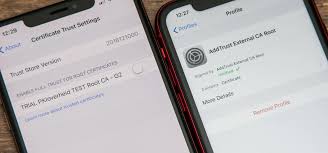
This is the step that most iPhone users miss — and the reason why Fire Kirin shows "Untrusted Developer" when first opened. After installing the profile, you must manually trust the developer certificate.
Go to Settings → General → VPN & Device Management. Under "Enterprise App" (or "Downloaded Profile"), find the Fire Kirin 777 certificate. Tap on it. You'll see a button that says "Trust [App Name]." Tap it. Confirm by tapping Trust on the popup dialog.
Step 5: Launch Fire Kirin 777 and Log In
Once the certificate is trusted, return to your home screen. The Fire Kirin 777 icon should now appear. Tap it to open the app. On the login screen, enter your account email and password from the credentials you received during signup.
Your account balance and welcome bonus credits will be loaded immediately. You're now ready to play any of the 50+ Fire Kirin 777 games on your iPhone or iPad.
Fixing Common Fire Kirin iOS Errors
"Untrusted Enterprise Developer" Error
This is the most common iOS issue. The fix: Settings → General → VPN & Device Management → find the Fire Kirin certificate → tap Trust. See Step 4 above for the full walkthrough.
App Revoked / Certificate Expired
Enterprise certificates expire or are occasionally revoked by Apple. If this happens, the app will stop opening with a "This app is no longer available" message. Simply download and reinstall the latest version from our iOS download page to get a fresh certificate.
"Profile Downloaded" Not Appearing in Settings
If you don't see the profile in Settings after tapping Allow in Safari, wait 30 seconds and check again. If it still doesn't appear, try clearing Safari's cache (Settings → Safari → Clear History and Website Data) and downloading again.
Alternative: Play Fire Kirin 777 Online on iPhone
If you're having persistent issues with the iOS installation, or simply prefer not to install apps, the browser version of Fire Kirin 777 works excellently on iPhone Safari. Visit our Play Online page, log in with your account, and play the full game library without any installation whatsoever.
Many iPhone users actually prefer this method — no installation headaches, always on the latest version, and the experience is nearly identical to the native app on modern iPhones.
Download Fire Kirin 777 for iPhone Today
Follow the steps above and you'll be playing in under 5 minutes. Or skip the install and play in your browser instantly.